Let's be honest here. You're sitting in the passenger seat, or maybe you're the driver on a long, boring stretch of highway, and the thought hits you: "Wouldn't it be great to watch a quick YouTube video or browse a website on this nice car screen?" You plug in your phone, fire up Android Auto, and then... confusion. Chrome isn't there. YouTube's app is missing. What gives?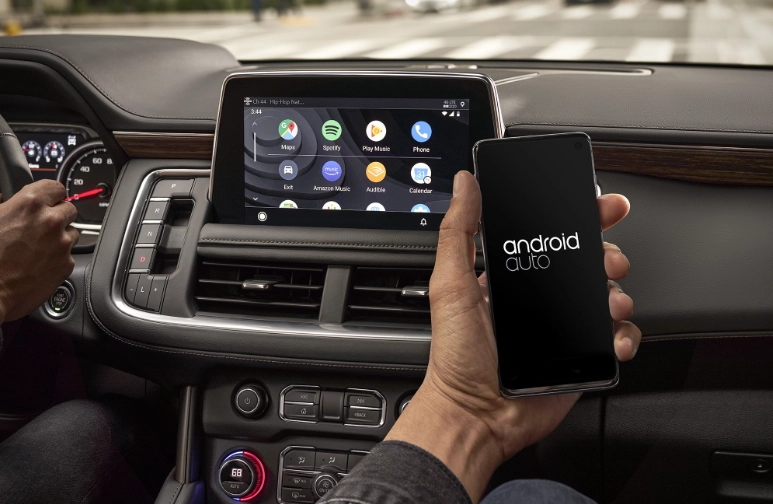
I've been tinkering with car tech for over a decade, and this is one of the most common frustrations I hear. The promise of a "smart" car dashboard feels hollow when you can't access the web like on your phone. But here's the crucial thing most articles gloss over: this isn't a bug or an oversight. It's a fiercely defended design choice with safety and legality at its core. Trying to force a full web browser onto Android Auto is like trying to fit a square peg in a round hole—you might get it partly in, but it's messy and probably unsafe.
So, can you browse videos on Android Auto? The direct answer is no, not in the way you think. But there are legal, safe, and surprisingly good alternatives for passengers, and specific scenarios for drivers. This guide cuts through the hype and shady workarounds to show you what actually works, what's safe, and how to get the most out of your car's infotainment system without breaking the law or your focus on the road.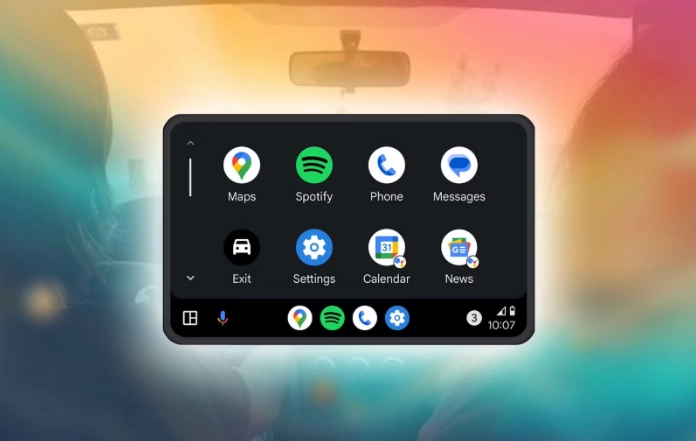
What's Inside This Guide?
Why Can't I Just Browse Videos on Android Auto?
Google and car manufacturers aren't trying to ruin your fun. They're trying to prevent accidents. Distracted driving is a massive problem. The National Highway Traffic Safety Administration (NHTSA) has voluntary guidelines that heavily influence platform design, pushing for systems that minimize driver distraction.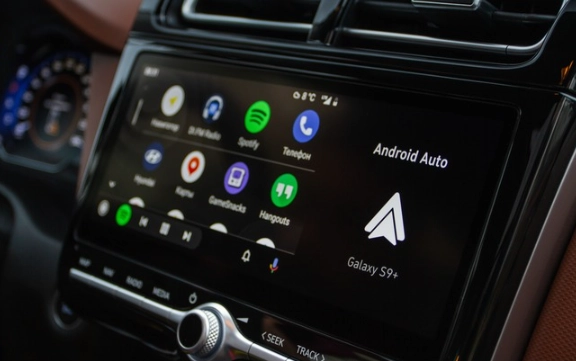
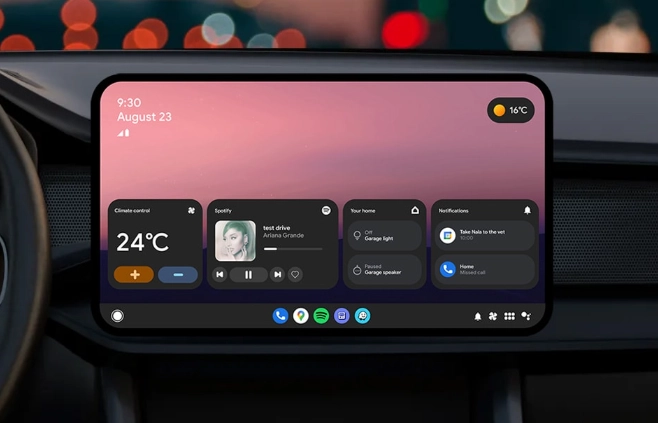
Think about it. A traditional web browser or the YouTube app is built for a stationary user. Tiny links, complex menus, autoplaying videos, flashing ads—it's a visual and cognitive nightmare for someone who should be watching the road. Android Auto's entire interface is built around simplicity: large, easy-to-tap targets, voice-first interaction, and a limited set of deeply integrated apps.
A subtle mistake I see: People assume if they can get their phone's screen to appear on the car display (via mirroring), they've "beaten the system." But you haven't. You've just transferred an unsafe phone interface to a larger screen. The distraction risk multiplies because you're now interacting with a complex UI that's right in your line of sight while driving. It's more dangerous, not less.
The platform's app approval process is strict for this reason. Apps need to follow specific design templates and limit interactive content while the car is in motion. A general web browser can't possibly comply.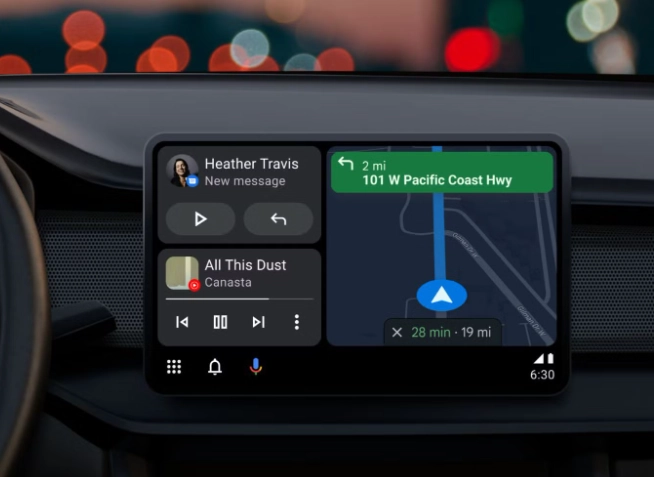
Video & Media Apps That Actually Work on Android Auto
Okay, so raw web browsing is out. But what about watching your own videos or specific streaming content? Here, you have options. They fall into two categories: official, curated apps and clever third-party solutions that work within the rules.
Official, Safe-By-Design Apps
These apps are built with the Android Auto driver-friendly template. Their interfaces are stripped down, often relying on voice search or pre-made playlists.
- YouTube Music: This is the big one. While the main YouTube app is banned, YouTube Music is fully supported. You can search for music videos via voice ("Hey Google, play the video for 'Blinding Lights' on YouTube Music") and they will play on your car screen. It's a legitimate way to get video content, albeit music-focused.
- Plex: If you have a personal media server, Plex's Android Auto app is fantastic. It lets you access your own library of movies and TV shows. The interface is simple—just your library folders and play/pause controls. Perfect for passengers or for playing something during a long charging stop in an EV.
- Other Media Players: Apps like VLC and local file players often have basic Android Auto support to play video files stored on your device. Again, the interface is just a file list.
The Third-Party Contender: "CarTube" and Its Kin
This is where it gets interesting. You won't find these on the Play Store easily. Developers have created apps like "CarTube" (often found on GitHub or independent app stores) that repackage YouTube's content into an Android Auto-compatible interface.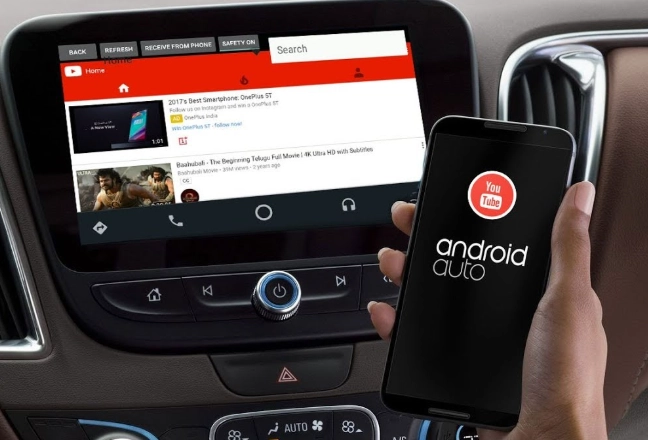
How they (sort of) work: These apps don't run a full browser. They use YouTube's API to fetch content and present it in a super-simple, large-button menu. You might get categories like "Trending" or a search bar. The key limitation? Interaction is severely limited while driving. You often need to be parked to search or browse lists. Playback controls (play, pause, skip) are the main driver-facing features.
Here’s a quick comparison of the main video-capable routes:
| Method / App | Best For | Works While Driving? | The Catch |
|---|---|---|---|
| YouTube Music | Music videos, official content. | Yes (voice search/playlists). | Music-focused, requires subscription for best features. |
| Plex / Local Players | Your personal movie/TV collection. | Playback only. Browsing library often restricted. | Requires pre-downloaded content or a home server. |
| "CarTube"-style Apps | Accessing general YouTube content. | Playback only. Browsing requires parked state. | Unofficial, can break if YouTube changes its API. |
| Screen Mirroring | Passenger use only; full phone access. | Absolutely not. Illegal and dangerous for driver. | Requires specific hardware/head units. Driver distraction nightmare. |
The Screen Mirroring Route: A Passenger-Only Solution
Many aftermarket head units from brands like Pioneer or Alpine offer a feature called "screen mirroring" via Miracast or a wired connection. This literally projects your phone's screen onto the car's display.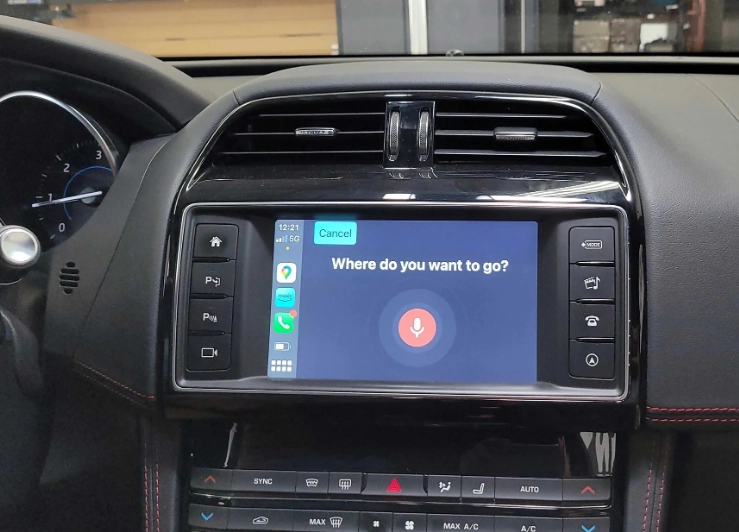
Let me be blunt: This is not an Android Auto feature. It's a separate function of the head unit. When you mirror your screen, Android Auto is not running. You're just looking at your phone on a bigger screen.
The only safe use case for this is for a passenger. On a long road trip, the passenger can mirror their phone, pull up Netflix, YouTube, or a browser, and watch comfortably. The driver's Android Auto interface (for maps and music) remains separate and unaffected. This is the closest you'll get to "web browsing" on your car screen, and it's strictly a passenger privilege.
Safety and Legal Best Practices You Can't Ignore
This isn't just about morals; it's about law. Many regions have strict distracted driving laws that explicitly prohibit interacting with video screens visible to the driver. A traffic stop where you're caught scrolling through videos on your center console won't end well.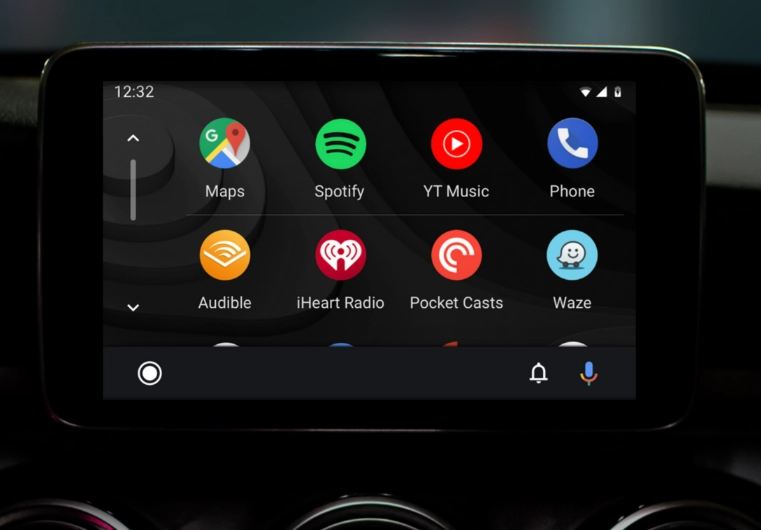
My rule of thumb, born from seeing too many close calls:
- If you're driving, your interaction with the screen should be under 2 seconds and predictable. Tap play, tap pause, skip track. That's it. No browsing, no searching, no reading.
- Use Voice. Always. "Hey Google, play the next episode" is safe. Looking for it is not.
- Set up everything before you move. Playlists, navigation, podcast queue—get it ready while parked.
- If a passenger is watching something, consider using a headrest-mounted tablet instead. It removes the temptation for the driver to glance.
Your Burning Questions Answered (FAQs)
The bottom line is this: Android Auto is engineered as a driver assistance tool, not an entertainment hub. While the desire to browse videos is understandable, the platform's limitations exist for a critical reason. By using the approved apps like YouTube Music and Plex, or responsibly using screen mirroring for passengers, you can find a good balance between entertainment and safety. Trying to hack your way to a full browser might work technically for a minute, but it compromises the very thing your car should prioritize: getting everyone to their destination safely.